Please note that all IDM extensions that can be found in Google Store are fake and should not be used. You need to install IDM extension manually from IDM installation folder. Read in step 2 how to do it.
1. Please update IDM to the latest version by using "IDM Help->Check for updates..." menu item
2. I don't see "IDM Integration module" extension in the list of extensions in Chrome. How can I install it?
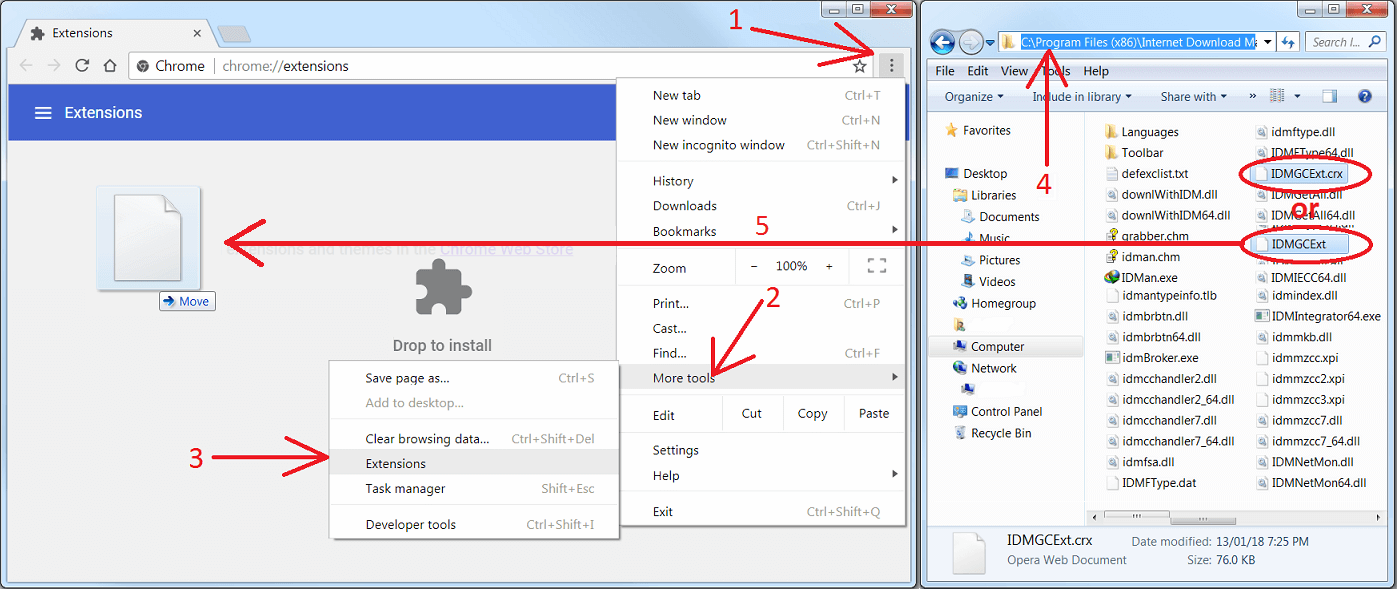
Press on Chrome menu (arrow 1 on the image), select "Settings" menu item (arrow 2 on the image) and then select "Extensions" tab (arrow 3 on the image). After this open IDM installation folder ("C:\Program Files (x86)\Internet Download Manager" by default, arrow 4 on the image) and drag and drop "IDMGCExt.crx" (arrow 5 on the image) file into "Extensions" page opened in your Chrome ("Drop to install" popup will appear while dragging over the "Extensions" page). Please note that file may be named simply IDMGCExt if your Windows Explorer does not show file extensions.
3. How to configure IDM extension for Chrome?
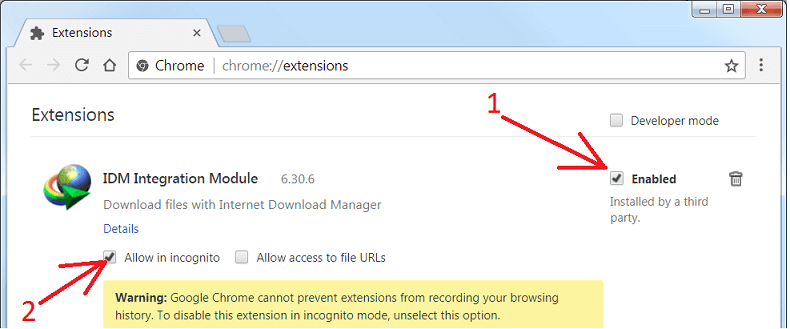
If you already added IDM extension into Chrome you need to configure it correctly. Check that "IDM Integration Module" extension is enabled (arrow 1 on the image). If you use incognito mode in Chrome, you need to enable "Allow in incognito" checkbox (arrow 2 on the image).

1 comment:
Not seeing the IDM integration module in your Chrome extensions list is easily one of the most common and frustrating roadblocks for users! Usually, this requires digging into the IDM installation directory in your Program Files and manually dragging the IDMGCExt.crx file directly into the Chrome extensions page to force the installation. However, if the extension keeps disappearing, getting flagged, or throwing errors every time Chrome runs a background security update, it usually means the underlying software foundation wasn't installed with the correct registry permissions. To avoid this endless loop of manually reinstalling the extension and fix the root cause for good, following a proven 14-step IDM setup tutorial guarantees a permanent, error-free installation with perfect browser integration on Windows 10 and 11. Thanks for tackling such a frequently asked troubleshooting question!
Post a Comment